How to Update Printer Drivers
- Restart your printer and computer before updating anything — this clears stale driver connections
- Check Windows Update first — Microsoft pushes common printer driver updates automatically
- Know your exact printer model number — it's printed on the front or label of the device
- Back up your current driver before installing a new one, in case of compatibility issues
- Unplug USB printers during the driver update, then reconnect after the install finishes
- "Driver is unavailable"
- "Printer offline"
- "Print spooler error"
- "Driver is not compatible with this version of Windows"
- "Windows cannot connect to the printer"
- What is a printer driver?
- Why keeping printer drivers updated matters
- Option 1: Use Windows Update
- Option 2: Update via Device Manager
- Option 3: Download from manufacturer's website
- Option 4: Use Add Printer Driver Wizard
- How to update printer drivers on macOS
- Common printer driver issues and how to fix them
- Is it safe to download printer drivers online?
- How often should you update printer drivers?
- Frequently asked questions
What is a printer driver?
A printer driver is a small piece of software that lets your computer communicate with your physical printer. It translates what you see on screen — documents, photos, spreadsheets — into instructions the printer hardware can execute. Without the correct driver installed, your operating system has no way to send print jobs to the device.
Most printer models require their own driver. Even printers from the same manufacturer — say, an HP DeskJet 4155e and an HP OfficeJet Pro 9015e — use different driver packages optimized for their specific hardware capabilities. That's why installing the right driver for your exact printer model matters.
Printer manufacturers like HP, Canon, Epson, Brother, and others develop specialized driver packages tailored to each Windows release. When Microsoft rolls out a feature update to Windows 10 or Windows 11, these manufacturers often release updated drivers to maintain compatibility.
Why keeping printer drivers updated matters
Outdated, damaged, or incorrectly installed drivers can lead to connectivity issues, misprints, or even complete communication breakdowns between your computer and printer. Here's what can go wrong when drivers fall behind:
- Print jobs fail silently — the queue accepts the job, but nothing comes out of the printer
- Print quality degrades — colors shift, text blurs, or pages print only halfway
- The printer drops offline randomly — especially after your computer wakes from sleep
- New features stay locked — duplex printing, borderless mode, or wireless scanning may not work until the driver is updated
- Older drivers may miss security fixes — outdated driver packages can contain bugs that malware exploits
Printer driver management isn't a set-and-forget affair. As Microsoft continues to evolve the Windows kernel, rolling out feature updates, security patches, and supporting new hardware stacks, drivers need to keep pace. Routinely updating to the latest drivers keeps your printer running smoothly and prevents the kind of issues that seem to appear out of nowhere.
How to update printer drivers on Windows 10 and Windows 11
There are four reliable methods to update printer drivers on Windows. Start with Windows Update — it's the safest and most automated route. If that doesn't resolve the issue, work down the list.
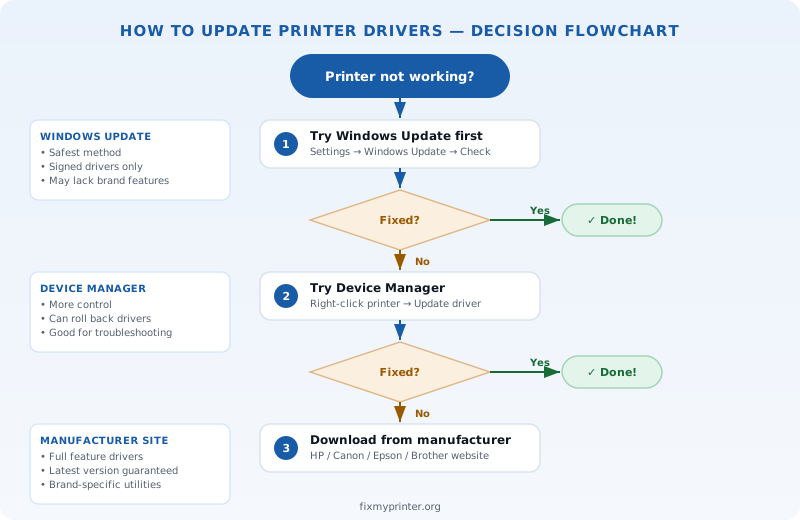
Option 1: Use Windows Update (recommended)
The most straightforward method for most Windows users is to let Windows Update take care of your printer drivers. Microsoft maintains a large catalog of signed printer drivers from major manufacturers.
- Open Settings by pressing Windows key + I
- Navigate to Windows Update (on Windows 11) or Update & Security > Windows Update (on Windows 10)
- Click Check for updates
- If a printer driver update is available, it will appear under "Optional updates" or "Driver updates"
- Select the printer driver update and click Download and install
- Restart your computer after the installation completes
Windows Update is the recommended route because every driver in the catalog is digitally signed and tested for compatibility with your operating system. The downside is that manufacturer-specific features — like HP Smart printing or Epson's EcoTank ink monitoring — may not be included. For those, you'll need the full driver package from the manufacturer's website.
Option 2: Update via Device Manager
Device Manager gives you more direct control over which driver is installed. This method is useful when Windows Update hasn't found the correct driver or you need to roll back to a previous version.
- Press Windows key + X and select Device Manager
- Expand the Print queues or Printers section
- Right-click your printer name and select Update driver
- Choose Search automatically for drivers
- Windows will search online and install any available update
- If no update is found, select Browse my computer for drivers to install a driver you've already downloaded
If your printer doesn't appear in Device Manager, it may be listed under Other devices with a yellow warning icon. That's a sign the driver is missing or corrupted entirely.
Option 3: Download and install printer drivers from the manufacturer's website
Sometimes your printer might need a more customized approach, especially if Windows Update hasn't found the correct driver. Downloading directly from the manufacturer's website ensures you get the latest driver with full feature support.
Enter your model number, select your operating system, and download the recommended driver package.
Search for your model, download the correct driver for your OS, and run the setup file.
Enter your model number and download the driver package — Epson's setup wizard detects and configures automatically.
Enter your model number and download the "Full Driver & Software Package."

Option 4: Use Add Printer Driver Wizard
If the standard methods haven't worked, you can manually add or replace a printer driver using the built-in Add Printer Driver Wizard.
- Open Control Panel > Devices and Printers
- Click Print server properties in the top menu bar
- Select the Drivers tab
- Click Add to launch the Add Printer Driver Wizard
- Select your printer manufacturer and model from the list
- If your model isn't listed, click Windows Update to refresh the driver catalog, or click Have Disk to point to a downloaded driver file
- Complete the wizard and restart the Print Spooler service
This method is especially useful in office environments where IT teams need to deploy a specific printer driver across multiple computers, or when driver conflicts from multiple installed printers cause issues.
How to update printer drivers on macOS
On a Mac, printer software updates work differently. Apple uses a system called AirPrint for most modern printers, which handles driver management automatically. For printers that need specific drivers, macOS downloads them from Apple's software update servers.
- Open System Settings (or System Preferences on older macOS versions)
- Go to General > Software Update
- If a printer driver update is available, it will appear here
- You can also go to Printers & Scanners, remove the printer, and re-add it — macOS will download the latest driver automatically during setup
For HP printers on Mac, Apple includes built-in support. Canon and Epson printers may require downloading the manufacturer's Mac driver package from their website. Brother printers typically need the Brother iPrint&Scan app or the full driver from Brother's support page.
Common printer driver issues and how to fix them
Even after updating, printer driver problems can persist. Here are the most common issues and their fixes.
Printer not working after a Windows update
This is one of the most frequently reported printer issues. A Windows feature update can overwrite your existing printer driver with a generic one, or the update can change system settings that break the driver connection.
- Open Device Manager and check if your printer has a yellow warning icon
- Right-click the printer and select Update driver > Search automatically
- If that doesn't work, uninstall the printer driver entirely: right-click > Uninstall device (check "Delete the driver software" box)
- Restart your computer — Windows will attempt to reinstall the correct driver
- If the issue persists, download the latest driver from the manufacturer's website and install it manually
Driver compatibility problems
If you recently upgraded from Windows 10 to Windows 11, or switched from a 32-bit to a 64-bit operating system, your old driver may not be compatible. Signs include error messages like "Driver is unavailable" or the printer appearing in Devices and Printers with a grayed-out icon.
The fix is to completely remove the old driver and install the correct version for your current operating system. Download the driver that matches your exact OS version and architecture (64-bit in most cases) from the manufacturer's website.
Reinstalling the printer driver (clean install)
When updating doesn't fix the problem, a clean reinstall is the next step. This removes all traces of the old driver before installing fresh.
- Open Settings > Bluetooth & devices > Printers & scanners
- Select your printer and click Remove
- Open Device Manager, find any remaining printer entries under Print queues, right-click, and select Uninstall device
- Open Control Panel > Devices and Printers > Print server properties > Drivers tab and delete the driver package
- Restart your computer
- Download the latest driver from the manufacturer's website
- Run the installer — this gives the system a completely fresh driver installation
Is it safe to download printer drivers online?
Stick to official sources. The only safe places to download printer drivers are the printer manufacturer's website and Windows Update. Never download drivers from third-party sites that promise "free driver scans" or "one-click driver updates" — these are almost always bundled with adware, and some contain malware.
If you find a driver download site that asks you to install a "driver update tool" before giving you the driver, close the page. Genuine manufacturer sites provide direct download links — no intermediary software needed.
How often should you update printer drivers?
For most personal computers, checking for printer driver updates every few months is sufficient — or whenever you notice a printing problem. There's no need to update weekly.
Update immediately if:
- You've just installed a new printer
- Printing stopped working after a Windows or macOS update
- You upgraded to a new operating system (Windows 10 to Windows 11, or a new macOS version)
- Print quality has degraded for no obvious reason
- Your printer manufacturer released a firmware or driver update that fixes a known issue
In office and enterprise environments, many IT teams manage printer drivers through group policy or print servers, pushing updates on a scheduled basis to avoid compatibility surprises. For home users, the combination of Windows Update and occasional manual checks through Device Manager is enough to keep your printer drivers up to date.