Printer Troubleshooter: Fix Common Printer Problems Fast
- Stuck print job blocking the queue
- Outdated or wrong printer driver
- Wrong default printer selected
- Wi-Fi reconnection failure after router restart
- Clogged printhead or nozzle
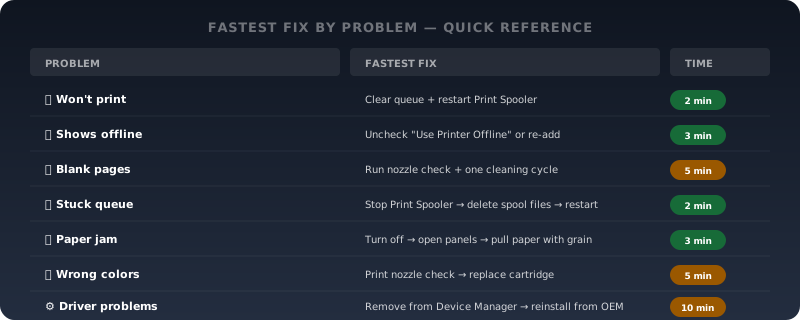
| Problem | Fastest Fix | Time |
|---|---|---|
| 🚫 Won't print | Clear queue + restart Print Spooler | 2 min |
| 📴 Shows offline | Uncheck "Use Printer Offline" or re-add printer | 3 min |
| 📃 Blank pages | Run nozzle check + one cleaning cycle | 5 min |
| 🗂️ Stuck queue | Stop Print Spooler → delete spool files → restart | 2 min |
| 📄 Paper jam | Turn off → open all panels → pull paper with the grain | 3 min |
| 🎨 Wrong colors | Print nozzle check → replace affected cartridge | 5 min |
| 📊 Garbled text | Uninstall driver → reinstall from manufacturer site | 10 min |
| ⚙️ Driver issues | Remove from Device Manager + Printers → reinstall | 10 min |
- Turn the printer off and back on. Hold the power button, wait 30 seconds, then power it back on — this clears internal memory and resets stale connections
- Restart your computer. A restart clears the print spooler and flushes any corrupted print jobs sitting in the queue
- Check the basics. Make sure the printer is turned on, has paper loaded, and shows no error lights or warning messages on its display panel
- Confirm the connection. USB: check that the cable is firmly plugged in at both ends. Wireless: confirm the printer and your computer are on the same Wi-Fi network
- Print a test page. From the printer's own control panel, print a test page. If it prints fine, the hardware is working and the problem is on the computer side
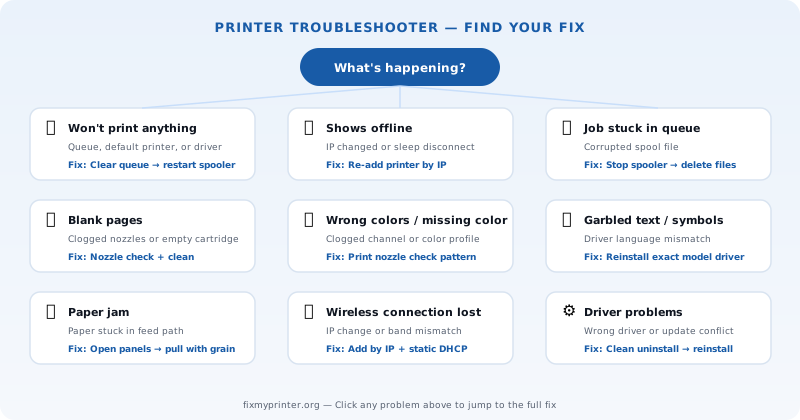
- Printer won't print anything
- Printer says offline but it's connected
- Print job stuck in queue
- Printer printing blank pages
- Printer driver problems
- Wrong colors or one color missing
- Paper jams
- Wireless printer connection issues
- Garbled text or symbols
- How to run the Windows printer troubleshooter
- How to run a printer diagnostic
- How to force reset a printer
- Common printer problems by brand
- Should you repair or replace your printer?
- Keep your printer running smoothly
- Frequently asked questions
Printer won't print anything
Your computer sends the job but nothing comes out. The printer might make sounds, or it might sit completely silent.
Most likely causes: wrong printer selected as default, print queue jammed with a stuck job, printer driver outdated or corrupted after a Windows update, or the printer is set to "Use Printer Offline" mode. Windows sometimes changes your default printer after an update without warning.
Fix on Windows 10 and Windows 11
- Open Settings → Bluetooth & devices → Printers & scanners
- Check which printer is listed as default — make sure it's your actual printer, not "Microsoft Print to PDF" or an old entry
- Click your printer → Open print queue → delete any stuck or pending print jobs
- If the queue won't clear, open Services (press Win+R, type
services.msc), find Print Spooler, right-click → Stop, then navigate toC:\Windows\System32\spool\PRINTERSand delete all files inside. Go back to Services and restart Print Spooler - Try printing a small text file from Notepad to test
Fix on macOS
- Open System Settings → Printers & Scanners
- Confirm the correct printer is selected and not paused
- Click the printer → Open Print Queue → delete any stuck jobs
- If the printer shows as unavailable, remove it with the minus button and re-add it
If the printer still won't print after clearing the queue and confirming the connection, the printer driver is the next thing to check. Download the latest driver for your printer from the manufacturer's website — not from a third-party driver download site.
Printer says offline but it's connected
The printer is powered on and connected to Wi-Fi (or USB), but your computer shows it as "Offline."
Most likely causes: the printer's IP address changed after a router restart, the printer went to sleep and didn't reconnect to Wi-Fi automatically, or the Windows "Use Printer Offline" flag got set accidentally.
- On Windows: open the print queue for your printer → click the Printer menu at the top → uncheck "Use Printer Offline" if it's checked
- Power cycle the printer completely — off, wait 60 seconds, back on
- If still offline, remove the printer from Printers & Scanners and re-add it
- For wireless printers that keep going offline: print a network configuration page from the printer's control panel to find its current IP address, then add the printer manually by IP instead of relying on auto-discovery
Print job stuck in queue and won't delete
You hit Cancel but the job stays. New print jobs pile up behind it. Nothing prints.
Most likely causes: a corrupted spool file that the Print Spooler service can't release, a large PDF or photo that stalled mid-transfer, or the printer went offline during a job and left it in a permanent waiting state.
Fix on Windows
- Press Win+R, type
services.msc, press Enter - Find Print Spooler → right-click → Stop
- Open File Explorer → navigate to
C:\Windows\System32\spool\PRINTERS - Delete all files inside that folder (not the folder itself)
- Go back to Services → right-click Print Spooler → Start
- Send a small test print to confirm the queue is clear
Fix on macOS
- Open System Settings → Printers & Scanners → select your printer
- Click Open Print Queue
- Click Pause, then delete the stuck jobs, then click Resume
- If jobs won't delete, right-click the printer → Reset Printing System (this removes all printers — you'll need to re-add them)
Printer printing blank pages
The printer runs a page through but nothing appears on the paper, even though ink or toner is installed.
Most likely causes: clogged nozzles (especially if the printer sat unused for weeks), a new ink cartridge that wasn't fully seated or still has protective tape on it, or a document that rendered invisibly — white text on a white background or empty PDF layers.
- Run a nozzle check from the printer's own control panel or maintenance menu
- If the nozzle check shows missing lines or gaps, run one cleaning cycle, then reprint the check
- Remove the ink cartridge, check for protective tape on the contact strip or nozzle area, and reseat it firmly
- Try printing a different file — a plain text document or a photo — to rule out a file-specific rendering issue
- If two cleaning cycles don't restore the nozzle check pattern, the cartridge may need replacement
Printer driver problems
The printer worked fine until a Windows update, a driver won't install, or the driver is installed but nothing prints.
Most likely causes: Windows Update replaced the manufacturer's driver with a generic Microsoft driver that lacks full functionality, the printer driver doesn't match the version of Windows or the system architecture (32-bit vs 64-bit), or old driver entries in Device Manager are conflicting with the new installation.
- Open Device Manager (press Win+X → Device Manager) → expand Print queues
- Right-click your printer → Uninstall device → check "Delete the driver software" if shown
- Also remove the printer from Settings → Printers & Scanners
- Download the correct driver for your specific printer model from the manufacturer's official support page
- Run the downloaded installer as administrator and complete the full setup
- Print a test page immediately after installation
On macOS: Remove the printer from Printers & Scanners, download the manufacturer's Mac driver package, install it, then re-add the printer. If the manufacturer doesn't offer a Mac driver, try adding the printer using AirPrint — most modern printers support it.
Wrong colors or one color missing
The nozzle check shows a gap in one color, or printed colors don't match the screen. Blues come out purple, greens look yellow, or one channel is completely absent.
- Print the nozzle check pattern from the printer's control panel
- If a color is missing or broken, run one cleaning cycle and reprint the check
- Check ink or toner levels — a cartridge often drops a color before the printer reports it as low
- In the app's print dialog, check color settings — make sure grayscale or "black only" isn't selected
- Replace the affected cartridge if cleaning doesn't restore the channel
Paper jams
Paper jams are the most common printer hardware problem. The printer either stops mid-page with paper stuck inside, or it shows a jam error even after you've removed the paper.
How to clear a paper jam without damaging your printer
- Turn the printer off and unplug it before reaching inside
- Open the front, back, and any side access panels — jams can occur anywhere along the paper path
- Pull the jammed paper out slowly and steadily in the direction of the paper path. Never yank or pull against the grain — that tears the paper and leaves fragments inside
- Check for small torn pieces that might be hiding near the rollers
- Close all panels, plug the printer back in, and turn it on
- Print a test page to confirm the path is clear
Why does my printer keep jamming? Common causes include overfilling the paper tray, using wrinkled or damp paper, mixing paper sizes in the same tray, or worn pickup rollers that can no longer grip paper consistently. If jams happen repeatedly even with fresh paper loaded correctly, the rollers may need cleaning or replacement.
Wireless printer connection issues
The printer connected fine yesterday but now your computer can't find it, or the printer keeps dropping off the network.
- Confirm your computer and printer are connected to the same Wi-Fi network — not different bands (2.4GHz vs 5GHz) or a guest network
- Print a network configuration page from the printer's control panel to find its current IP address
- Type that IP address into a web browser — if the printer's web interface loads, it's on the network
- Remove the printer from your computer and re-add it using the IP address directly
- If the wireless connection drops frequently, move the printer closer to the router or assign it a static IP through your router's DHCP settings
If your computer can't find the printer at all: Check whether your firewall or antivirus software is blocking printer discovery. The mDNS protocol (port 5353) and port 9100 need to be open for network printer communication.
Garbled text or symbols instead of text
Pages come out covered in random characters, symbols, or gibberish instead of the document you sent.
Most likely causes: the printer driver is sending data in a print language the printer doesn't understand (PCL vs PostScript mismatch), the driver is for the wrong printer model, or a corrupted data stream from a bad USB cable or flaky network connection.
Fix: Uninstall the printer driver completely from both Printers & Scanners and Device Manager. Download the exact driver for your specific printer model from the manufacturer's website — not a universal or generic driver. Reinstall and test with a plain text file from Notepad before trying anything more complex.
How to run the Windows printer troubleshooter
Windows 10 and Windows 11 include a built-in printer troubleshooter that can diagnose and fix common printer problems automatically. It checks for connection issues, driver problems, and print spooler errors.
On Windows 11
- Open Settings → System → Troubleshoot → Other troubleshooters
- Find Printer and click Run
- Select the printer that's having problems
- Follow the on-screen prompts — the tool will check connections, restart services, and suggest fixes
On Windows 10
- Open Settings → Update & Security → Troubleshoot → Additional troubleshooters
- Click Printer → Run the troubleshooter
- Select the affected printer and follow the prompts
The Windows printer troubleshooter can resolve many common software and connection issues automatically. For deeper printer troubleshooting, the symptom-specific guides linked above cover each issue in more detail.
How to run a printer diagnostic
A printer diagnostic is different from the Windows troubleshooter — it runs directly on the printer hardware itself, bypassing the computer entirely.
Most HP, Canon, Epson, and Brother printers have a built-in diagnostic or self-test function accessible through the printer's menu. The exact steps vary by printer model, but typically you'll find it under Settings → Maintenance → Self Test or Tools → Print Quality Report.
What the diagnostic tells you: nozzle check pattern (whether all ink channels are firing), alignment test (printhead calibration), network status (current IP, connection type, signal strength), and ink or toner levels.
If the printer's own diagnostic prints cleanly, the printer hardware is working and the problem is on the computer side — check your printer driver, print queue, and connection settings.
HP printers also have the HP Smart app and the HP Print and Scan Doctor tool, which run diagnostics from your computer and can automatically fix many common HP printer issues.
How to force reset a printer
When nothing else works, a factory reset clears all stored settings and returns the printer to its original state. This is a last resort — you'll need to reconnect the printer to Wi-Fi and reinstall it on your computer afterward.
- Turn the printer on
- Navigate to Settings or Setup on the printer's control panel
- Find Restore Defaults, Factory Reset, or Reset All Settings
- Confirm the reset when prompted
- After the reset completes, reconnect the printer to your Wi-Fi network
- Add the printer back on your computer through Printers & Scanners and install the latest driver
If your printer doesn't have a touchscreen menu: Hold the power button and the cancel button simultaneously for 10–15 seconds (the exact combination varies by manufacturer — check your printer's manual).
Common printer problems by brand
Most common: "offline" errors after Wi-Fi changes, HP Smart app connectivity issues, driver conflicts after Windows updates. HP provides the Print and Scan Doctor tool as a free diagnostic.
Most common: ink cartridge errors after refill or third-party install. The IJ Setup Utility handles driver installation and wireless setup.
Most common: printhead clogs on EcoTank models if left idle. The Epson Printer Connection Checker helps diagnose network issues.
Most common: "Unable to Print" errors on network-shared installations. Common in home offices with laser printers.
Should you repair or replace your printer?
If your printer is more than 5 years old and you're troubleshooting it regularly, it might be time to consider whether repair or replacement makes more sense.
Repair if the printer is under 3 years old, the issue is software or driver related (not hardware), replacement parts are available and affordable, or the printer model is still actively supported by the manufacturer.
Replace if the printer is over 5 years old and having recurring hardware issues, if the cost of ink or toner replacements exceeds the price of a new printer, if the manufacturer has discontinued support and drivers for your model, or if you need features your current printer doesn't have (wireless printing, mobile printing, duplex, scanning).
Keep your printer running smoothly
- Print something at least once a week — inkjet printers can develop clogged nozzles if left idle for more than two weeks
- Use the manufacturer's recommended paper — cheap paper causes more jams and dust buildup
- Keep the printer firmware and driver updated — check the manufacturer's support page quarterly or after every major Windows update
- Don't overfill the paper tray — overfilled trays cause the most paper jams
- Assign a static IP to wireless printers — this prevents the "offline" problem that happens when the router assigns a new IP after a restart